Intro
People store a lot of documents and other business knowledge on Papyrs and so we wanted to add search functionality so people could get to their documents more quickly. Here we’re going to give the technical explanation of how we got it all to work.
Much to our surprise we couldn’t find any package out there that met our (pretty basic) criteria. We were looking for:
- really fast search (so results can be displayed as you type)
- real-time indexing of new or changed documents (otherwise people who try our product for the first time won’t find the document they just created)
- reliable unicode support (7 bits sure ain’t enough for everybody)
- support for infix searches (important for reasons mentioned later)
- an indexer and searcher that can scale relatively easily to multiple processes or servers when/if the need arises
- stable performance (no segfaults please)
- a search engine that lets us change the schema of the documents we’re indexing without breaking anything.
- easy integration with a Python web app (using Django)
We looked at a number of search engines:
Lucence, Solr, Sphinx and PostgreSQL Full Text Search. We played with all of them but only Sphinx came close to meeting our criterea above. We’re pretty confident, looking back, that we made the right decision.
General introduction to Sphinx
Sphinx has two parts, an indexer and a search daemon. The search daemon listens for search queries such as “alpha & (delta | gamma)” and goes through the indexes for matches. The indexer reads data from a data source (relational database, XML pipe) and indexes it according to the document schema. When indexing has finished, it rotates (swaps) the index currently used by the search daemon with the new one. The old index is then deleted. This means (re)indexing and searching can happen in parrallel, and even on different physical machines if needed.
Implementation
We have different sorts of documents: Pages, Comments, Attached files, Profiles, and filled out Forms. These documents are non-uniform: different sorts of documents have different attributes. So we don’t want to hard-code the structure of the index in sphinx.conf. Instead we’ll use sphinx XML pipe functionality and generate the schema structure and data from the Django Model as needed. So for each Django Model we create a sphinx index. Then when a user searches we do a search for every document type and combine the results and display them to the user.
We connect Sphinx to Python with the Python library sphinxapi.py included in the Sphinx package. It’s a pretty straightforward mapping of API functions to Python methods. You can set the match mode, how the matches are sorted, which indexes to search through and so on. There are also a number of open source libraries that connect Django and Sphinx. We looked at Django-Sphinx but it hasn’t been maintained in the past couple of years and it doesn’t support XML based data sources (which we want to use). It instead generates a sphinx.conf file with the indexes and schema structures in there.
Generating XML data
So let’s illustrate how XML generation works using an example Comment model. We add a Sphinx metaclass for each Django Model we want to index.
The classes Attr and Field are simple wrapper classes that we use to generate the Sphinx schema from. They also make sure that when the XML data is generated that the data is of the correct type. Sphinx has a very fragile XML parser, so we have to make sure that boolean columns only contain boolean values, that everything is escaped properly and so on.
Using the SphinxSchema definition above we can easily generate the XML schema:
So with the combination of schema and a Django QuerySet we can now generate the XML data for sphinx to index. Pseudocode:
This works but we have to optimize: we don’t want to reindex everything when a single record changes. So we use two indexes for every document type: a main index and a delta index. The main index is the large index that contains everything that hasn’t been touched recently and the delta contains those documents that have been recently created, modified or deleted. The delta index is small and can be re-indexed frequently. The easiest way accomplish this is to give every model an “updated_at” timestamp, and every time a record is changed you update the timestamp.
Then you just partition the indexes into parts: the main index contains all records where [0 <= updated_at <= last_merge_time]. The delta contains all records where [last_merge_time < updated_at <= last_delta_time]. More partitions can be added if needed, but two indexes per document type will probably be good enough unless you have a huge database or documents change very frequently. Anyway, every time a user changes a document the indexer starts and re-indexes the all files that have been changed since last_merge_time and updates last_delta_time to the current time (technically, the time when it *started* delta-indexing, because that's when the database transaction starts). See the illustration:
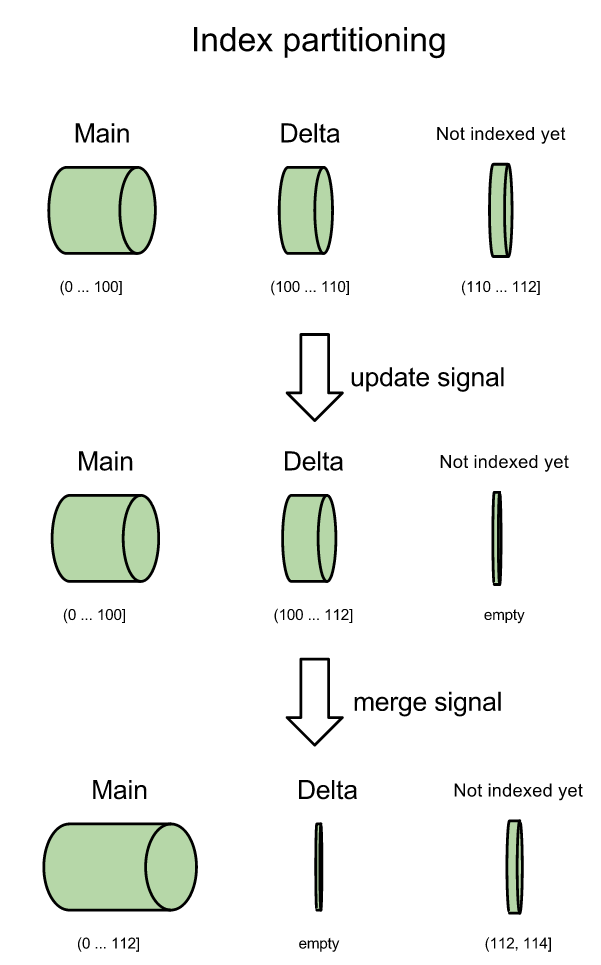
After an update the delta partition is completely re-indexed. Then the delta and main indexes are merged into one. During this time a few new documents arrive and the process starts anew.
So how do we start the indexer from django? Easy, we just touch(1) a file whenever a document is saved. Django has a post_save signal which we use to catch all save events. We check if the model that's being saved has a SphinxRecord metaclass and if so, we wake the indexer. It's the simplest solution we could think of :).
Abbreviated version of the daemon that spawns the indexer (we left out error checking, logging, etc):
It's just busy waiting until a process touches the PID file, then starts the sphinx indexer. Note that because we spawn new processes we can easily change the python code for updating/merging without having to restart this daemon. Also note that when multiple people touch the pid file the indexer is still only started once. And this way we also know for sure that the delta index and merge processes will never run at the same time.
Let's do a quick back of the envelope estimate: Delta indexing typically takes between 2 and 10 seconds, and if we merge least once every 500 delta indexes, then that's 1 merge roughly every hour. We currently index only a couple million documents and the indexes are only a few gigabytes large. Merging a delta and a main index is essentially the merge step of the merge sort algorithm. The two indexes are just interleaved, so the merge step takes roughly the time needed to copy the files. Copying a few gigabytes worth of indexes every hour is absolutely fine from a performance point of view so this straightforward main+delta solution is good enough for our purposes. And yep, in practice the indexer is running pretty much all day and night, because people are adding documents to Papyrs all the time.
Ghosting
Ghosting is when you delete a document but it still shows up in the search results for a while after. Suppose the main index contains document ids {1, 2, 3} and delta is {4, 5}. Then you change the title of document 2 and as a result it goes to the delta index. So main: {1, 2, 3}, delta: {2, 4, 5}. When you search for the document's new title it shows up exactly as expected. Because document 2 has the same primary key in the main and delta index Sphinx knows only to return the result from the delta index, so you don't get duplicate results. Perfect. Now you delete document 2 and you're left with: main: {1, 2, 3}, delta: {4, 5}. And when you search for the old document title it suddenly shows up, because the document is still in the main index. That's called ghosting and we want to keep it from happening.
The solution: we give every document type an attribute is_deleted. We then search with a sphinx filter is_deleted=False. Sphinx doesn't let us change fields (variable length text) but sphinx does allow us to update boolean values, integers and timestamps in a search index. So, whenever a document is modified we set is_deleted=True in the main index and in the delta index. This ensures that the old document doesn't show up in the search results at all anymore. Then, a few seconds later the new delta index will be ready that contains the updated document.
Permissions
With Papyrs different people in a group have different permissions. So we have to make sure that we display documents to a user if and only if the user has sufficient permissions to at least view that document. So after Sphinx comes up with a list of documents that match what the user searched for, we simply filter out those documents that the user can't access.
Indexing attachments
We index inside attachments, such as PDFs, Excel spreadsheets, Word documents and so on. This means we have to extract the text content of these different document formats. For this we just use the packages out there: ps2text for PDF files, antiword for MS Word documents. However, many of these text extraction tools mangle the text somewhat. Newlines and punctuation go missing, lines are concatenated without spaces between them, and garbage characters end up in the middle of words. We clean up the output by simply removing all suspicious looking characters and stripping all HTML tags from it.
If all content is really clean then you rarely have to search for only part of a word. But when some of the content is a bit messy then infix search becomes really valuable. Half the spaces in a document may be missing and you're still going to find matches with perfect accuracy.
Tips
- make sure you bind the search daemon to localhost otherwise everybody can connect to it. If you have a dedicated sphinx server, set up an SSH tunnel (i.e. ssh -f -N remote_server -L[remote_port]:localhost:[local_port]) because sphinx doesn't have any built-in authentication or encryption.
- if sphinx segfaults for unclear reasons it's probably because of the forking model you configured in sphinx.conf.
- we tried Sphinx' alpha real-time index support, but it was still very unstable (segfault gallore) and it doesn't support infix searching. It's in active development though, so that might be much better soon!
- compile Sphinx from source with at least libexpat and iconv support.
Conclusion
We've had this setup in production for almost 3 months now and it all works works great. Searches typically take just a few milliseconds and new results are added to the index within 5 seconds on average. We've spent a lot of time to make sure that search "just works". So we thought we might as well document what decisions we made and why. This is the document I wish existed when I started working on Papyrs search.
Phew, that's it. This turned out a lot longer than I had anticipated, but as I'm proofreading this there isn't much I can leave out. Thanks for reading this far. If you found this interesting, please spread the word or leave a comment!
PS: I could open up the source (it's few hundred lines of Python) and throw it on github. I'd have to spend an afternoon refactoring it though, so let me know if you're interested.